







Imagine this: you’re lounging on the couch, scrolling through your favorite book or article on your iPhone, and suddenly you think, “What if my phone could read this to me?” Well, it can! Reading aloud on an iPhone isn’t just for kids; it’s a game-changer for anyone who loves multitasking or simply wants to give their eyes a break.
Understanding Reading Aloud Features
Reading aloud on an iPhone offers various functionalities that enhance user experience. This feature is valuable for those who prefer auditory learning or need assistance due to visual impairments.
Importance of Reading Aloud
Reading aloud benefits users by improving comprehension and retention. This mode allows engaging with text in a different format, which can make complex materials easier to understand. Users can multitask while listening, balancing daily activities without sacrificing information. For students, hearing text can deepen understanding and facilitate note-taking in class. Additionally, adults benefit by enhancing focus during long documents or articles, making it a versatile tool for all.
Accessibility Options on iPhone
iPhones include numerous accessibility options tailored for effective reading aloud. VoiceOver provides spoken descriptions of items on the screen, allowing users to navigate effortlessly. Text-to-Speech transforms written content into spoken words with adjustable speech rates and voice selections. Users can customize these settings under Accessibility in the Settings app, ensuring a personalized experience. Speak Screen offers a simple swipe gesture to read content aloud in any compatible app. These features cater to diverse needs, promoting inclusivity for all users.
How to Enable Read Aloud on iPhone
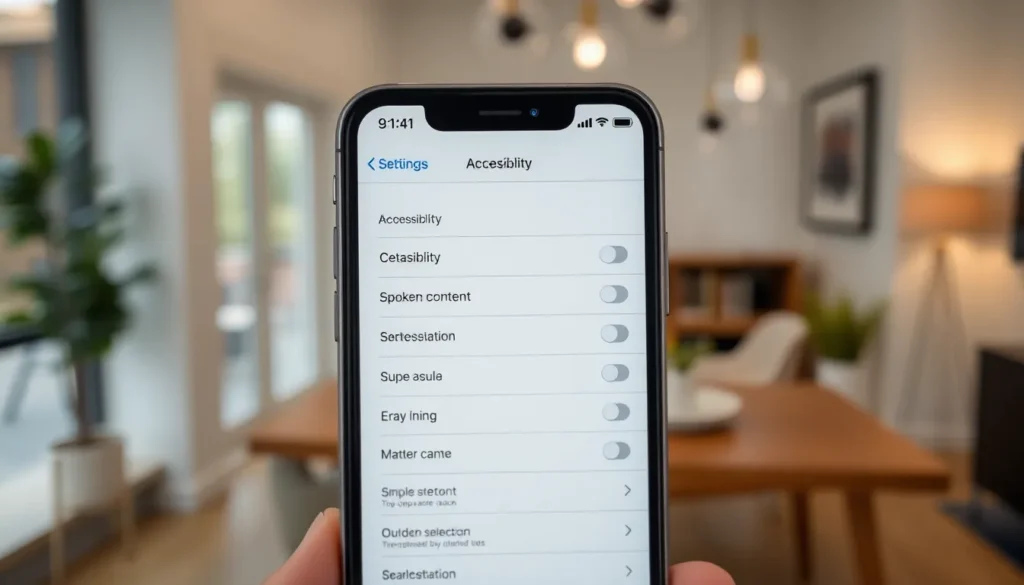
Enabling the Read Aloud feature on an iPhone enhances the reading experience significantly. This feature can be activated through the device’s settings.
Using the Settings App
Access the Settings app on your iPhone first. Navigate to Accessibility. Under Accessibility, find Spoken Content. Toggle the Speak Selection option to enable it. Once activated, this function allows text selection for reading aloud. Additionally, you can turn on Speak Screen. Swiping down with two fingers will read the entire screen’s content. This approach caters to various reading needs and preferences.
Customizing Voice and Speed
Customization of voice and speed adds a personal touch to the reading experience. Within the Spoken Content settings, users can choose from a range of voices. Selecting a desired voice, such as a male or female option, provides flexibility. Adjusting the speaking rate is also possible. Slide the speed control to find the preferred pace for listening. These adjustments make the Read Aloud feature more enjoyable and user-friendly.
Utilizing Siri for Reading Aloud
Siri serves as a powerful ally for reading aloud on an iPhone. By employing voice commands, users can access various features to enhance their reading experience.
Activating Siri
To utilize Siri, users can either press and hold the Side button or say “Hey Siri.” Once activated, Siri can assist with reading aloud text on the iPhone. It’s essential to ensure that Siri is enabled in the Settings app under Siri & Search. This quick access makes it convenient to interact with various apps, such as Safari or Books, allowing Siri to read content aloud instantly.
Commands for Reading Text
Several commands help users streamline the reading process. For example, saying “Read this” prompts Siri to start reading the highlighted text. Users can also instruct Siri with phrases like “Read more” to continue reading. Additionally, commands such as “Stop” or “Pause” control playback. These simple interactions facilitate a smooth reading experience, ensuring users engage with content effectively.
Popular Apps for Reading Aloud
Several applications enhance the reading aloud experience on iPhones. They provide users with convenient options and tools to engage with text.
Built-in iPhone Apps
The built-in apps on iPhones offer robust reading aloud capabilities. VoiceOver serves as a comprehensive screen reader, while Speak Screen reads text from any app. Users can access these features through the Accessibility menu in Settings. Notes and Books apps also support text-to-speech functionality, allowing seamless interaction with written content. Adjustments to voice and speech rate enhance the personalized experience. These built-in options cater to various needs, making reading flexible and accessible.
Third-Party Applications
Many third-party applications offer advanced reading aloud features. Apps like NaturalReader and Voice Dream Reader provide high-quality voices and customizable settings. Users enjoy options to choose different languages and accents, enhancing user experience with diverse content. Furthermore, Pocket and Instapaper allow users to save articles for later reading aloud. Each application brings unique strengths, catering to specific user preferences while maintaining readability. Their variety enables users to find the perfect fit for their reading needs.
Embracing the reading aloud feature on an iPhone can transform how users interact with text. It opens up new avenues for understanding and engagement whether for studying complex materials or simply enjoying a good book.
With customizable settings and the assistance of Siri users can tailor their reading experience to fit their needs. This functionality not only supports auditory learners but also enhances focus and retention for everyone.
By exploring built-in and third-party apps users can maximize their reading aloud experience. Ultimately this feature makes reading more accessible and enjoyable for all.